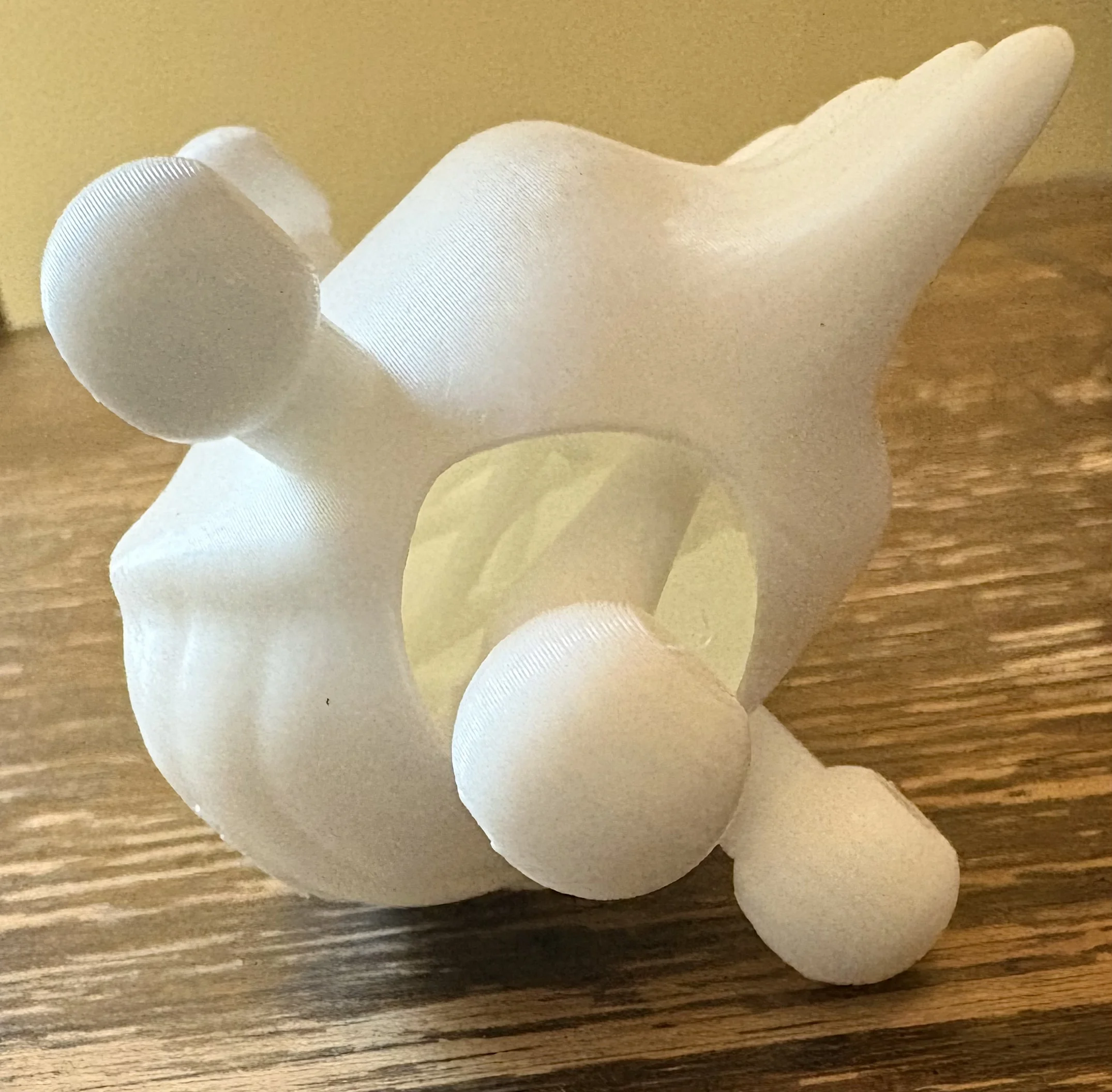
How Do I Print SnapLab Models?
SnapLab models are pre-prepared to make the printing process as smooth as possible.
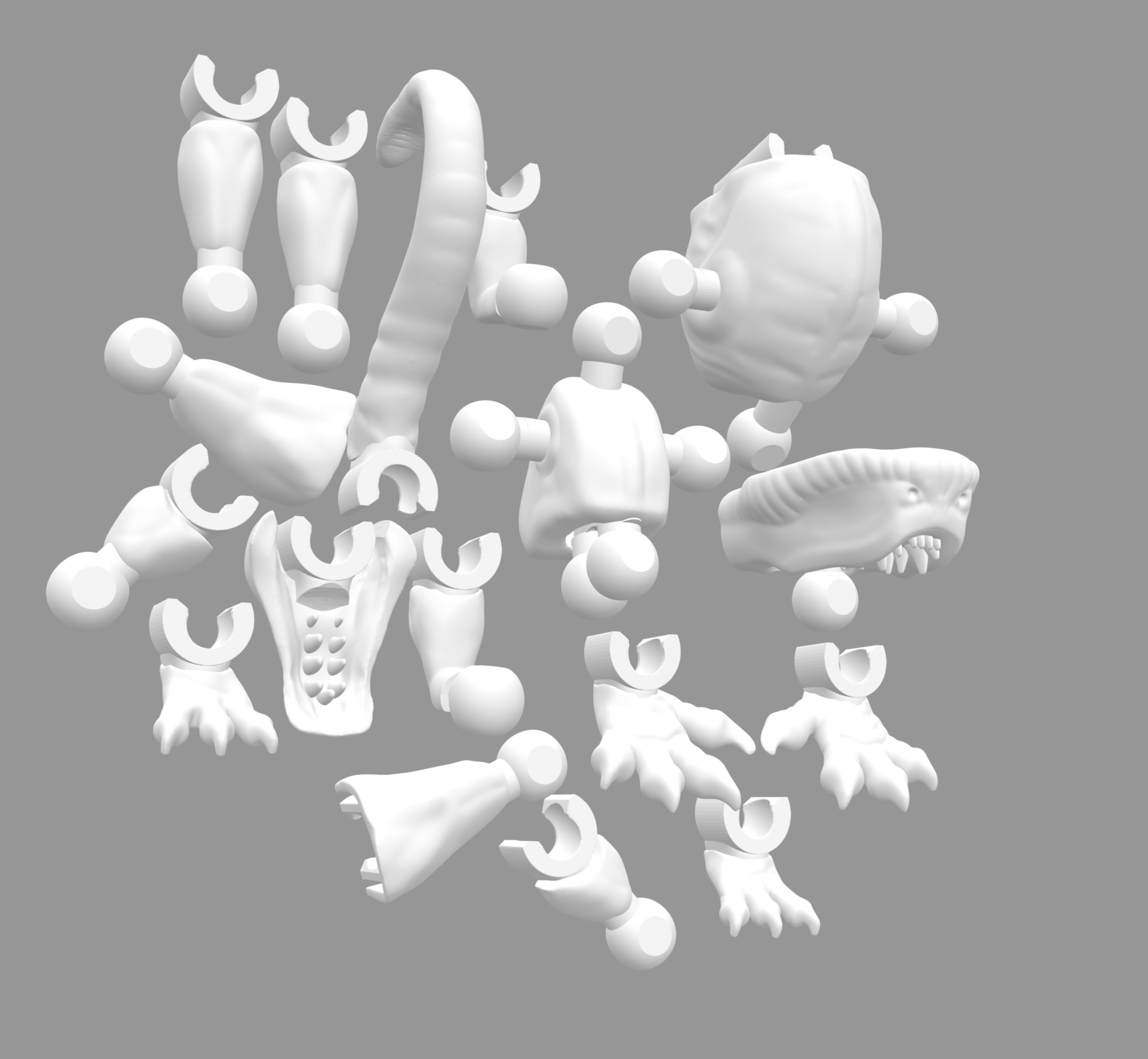
In each SnapLab creature profile, there is a “Download Model” button. Once you click this, the SnapLab figure model will be downloaded to your computer. This model is already arranged and scaled for printing.
Downloading SnapLab Models
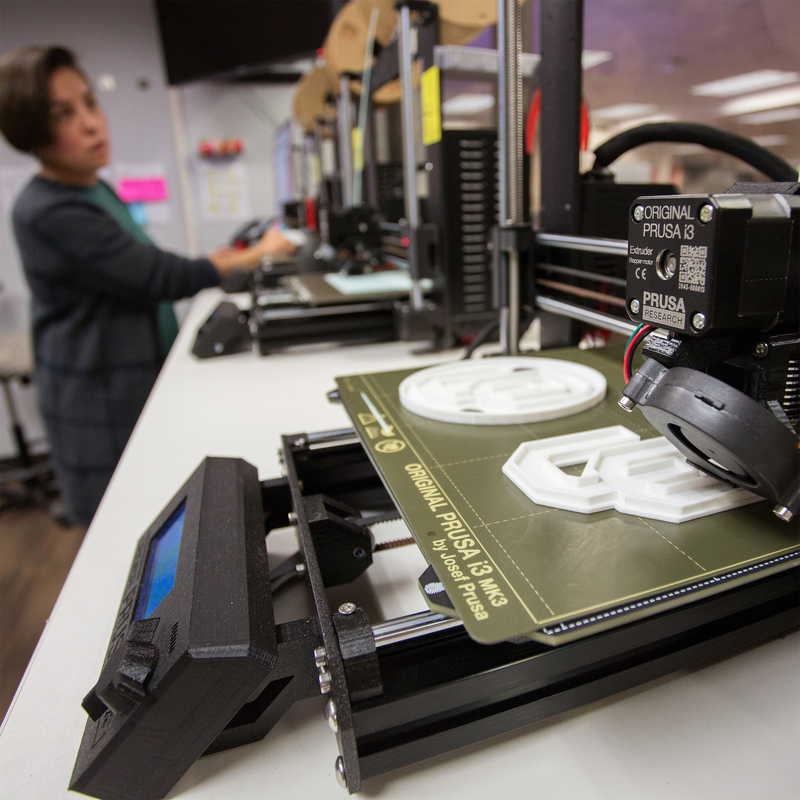
When printing at a library, makerspace or other public space, you will usually be instructed to submit your desired model through a sort of printing queue. Be sure to check the space’s website or ask the staff about submitting 3D prints.
Printing in Public
Removing Supports
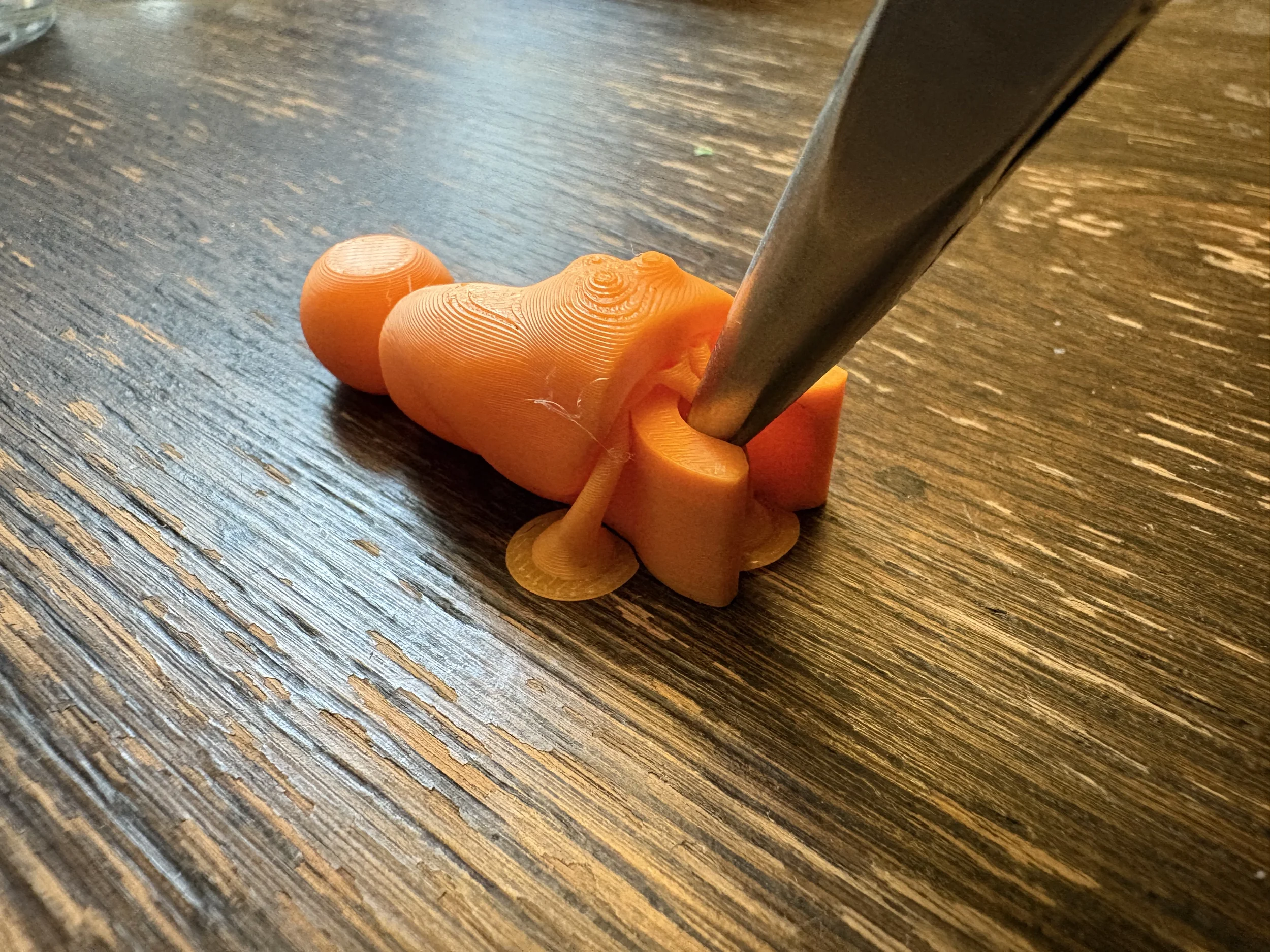
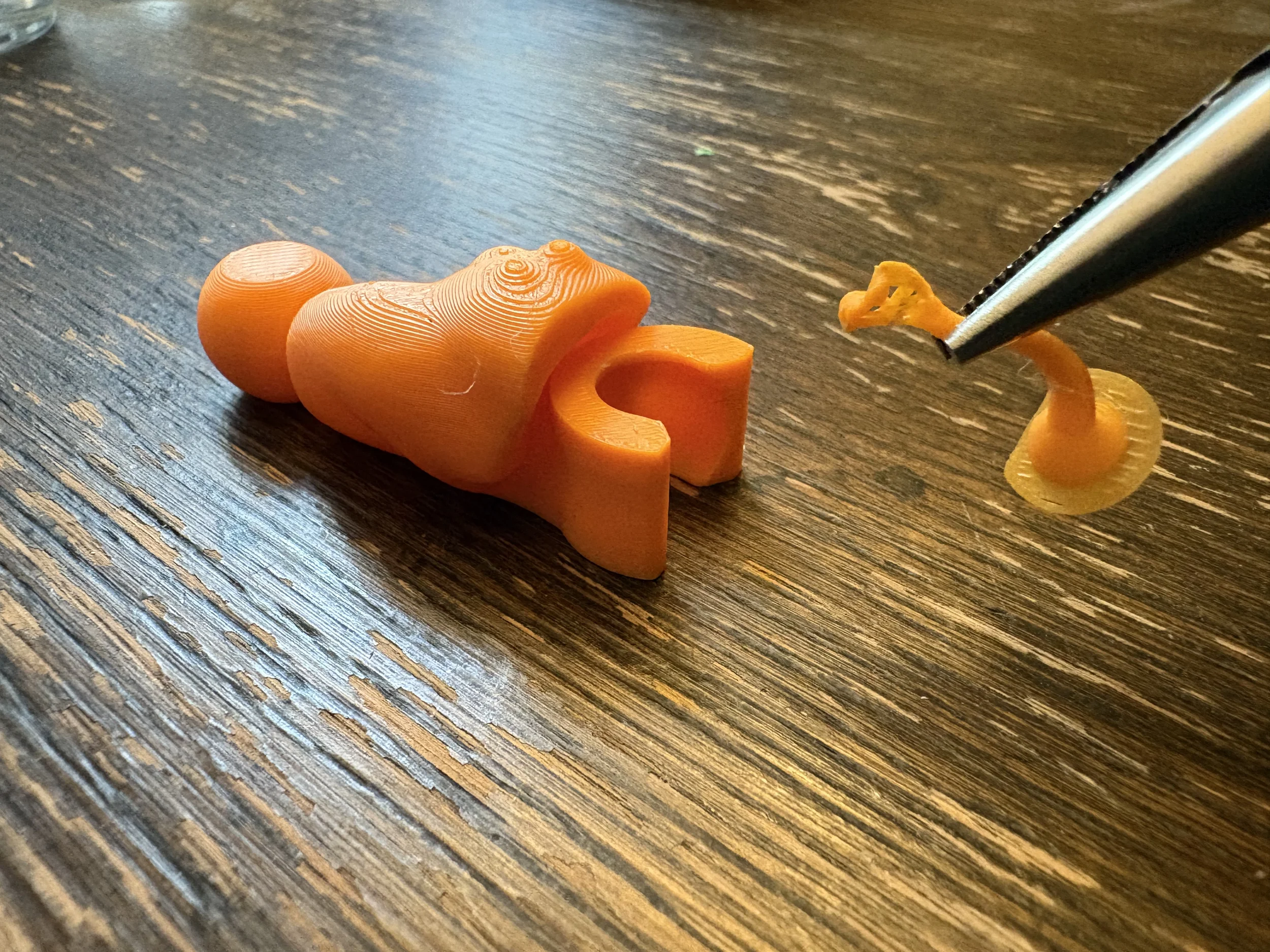
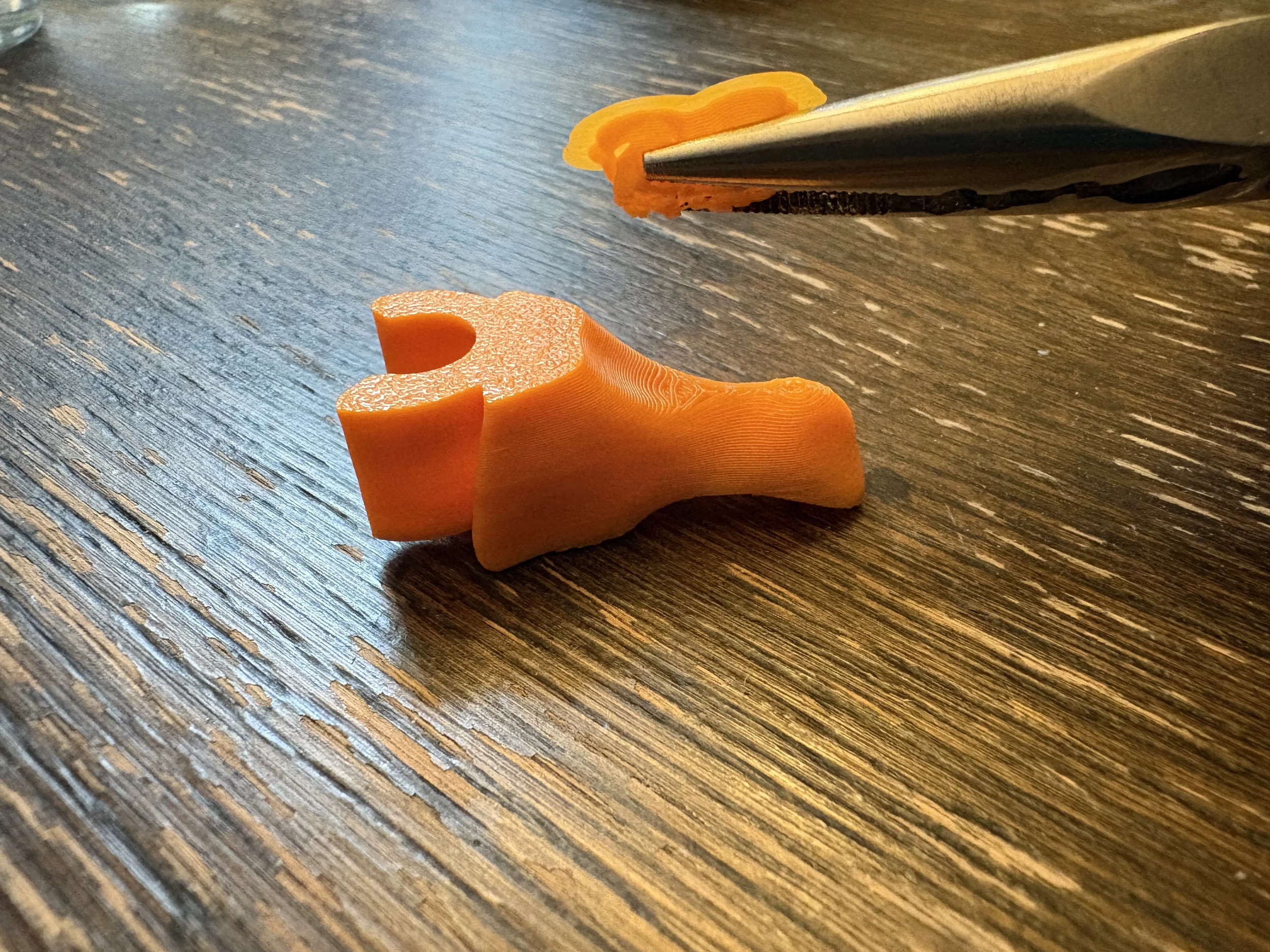
Once your print is finished, wait for it to fully cool off. Once the print is cooled, take a pair of thin pliers and grab the support as close to the model as you can. Then, gently twist until the support comes off.
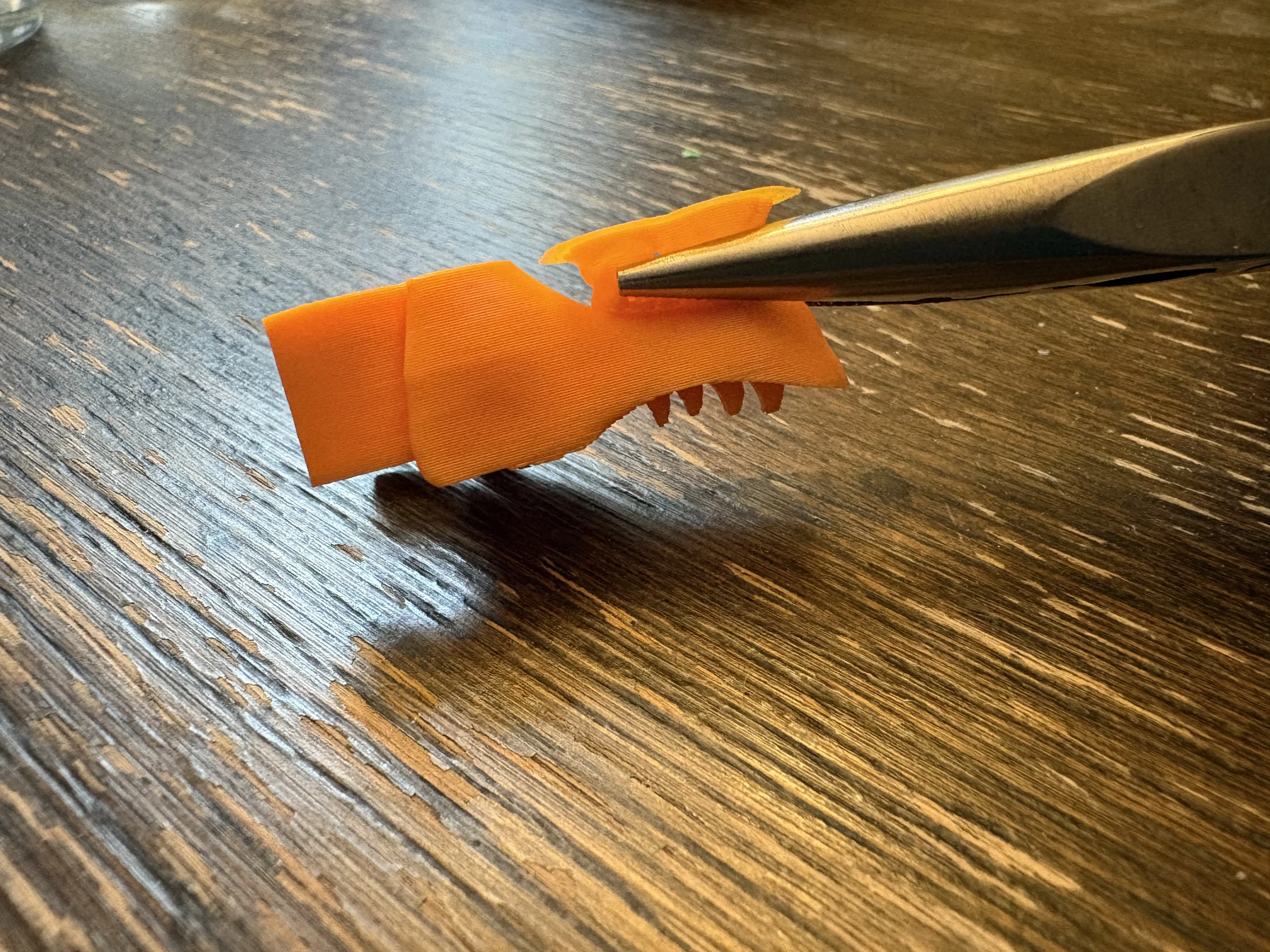
If a support is wide and flat, use your pliers to grab as much of the support as you can. Then simply pull away from the model to break it free.
Due to SnapLab figures being hollow, there will be some supports inside the models that can’t be readily reached. These are fine to be left alone - they won’t be knocked off easily and they help add support to the inside of your SnapLab model.